
The dashboard of Ziblo is the starting point to quickly check the activity of your establishment. From this screen, you can view reservations, monitor covers, check the status of the service, and access the main functions of the platform.
The dashboard is organized into easily recognizable sections. Each area is dedicated to a specific aspect of managing the establishment: daily activity, reservations, menu, products, guests, events, and settings.
In this guide, we’ll see how to navigate the Ziblo dashboard and where to find the most important functions.
—
The general structure of the dashboard
The screen is mainly composed of two areas:
- the sidebar, which contains links to Ziblo’s functions;
- the central area, which displays data, summaries, and operational information.
The sidebar remains visible during navigation and allows you to quickly switch between sections. The central area changes based on the selected option and presents the information related to the active function.
—
The sidebar menu
The sidebar is organized into groups to make it easier to find the functions. The main areas are:
- Platform;
- Menu;
- Reservations Calendar;
- Subscription;
- Settings;
- user profile.
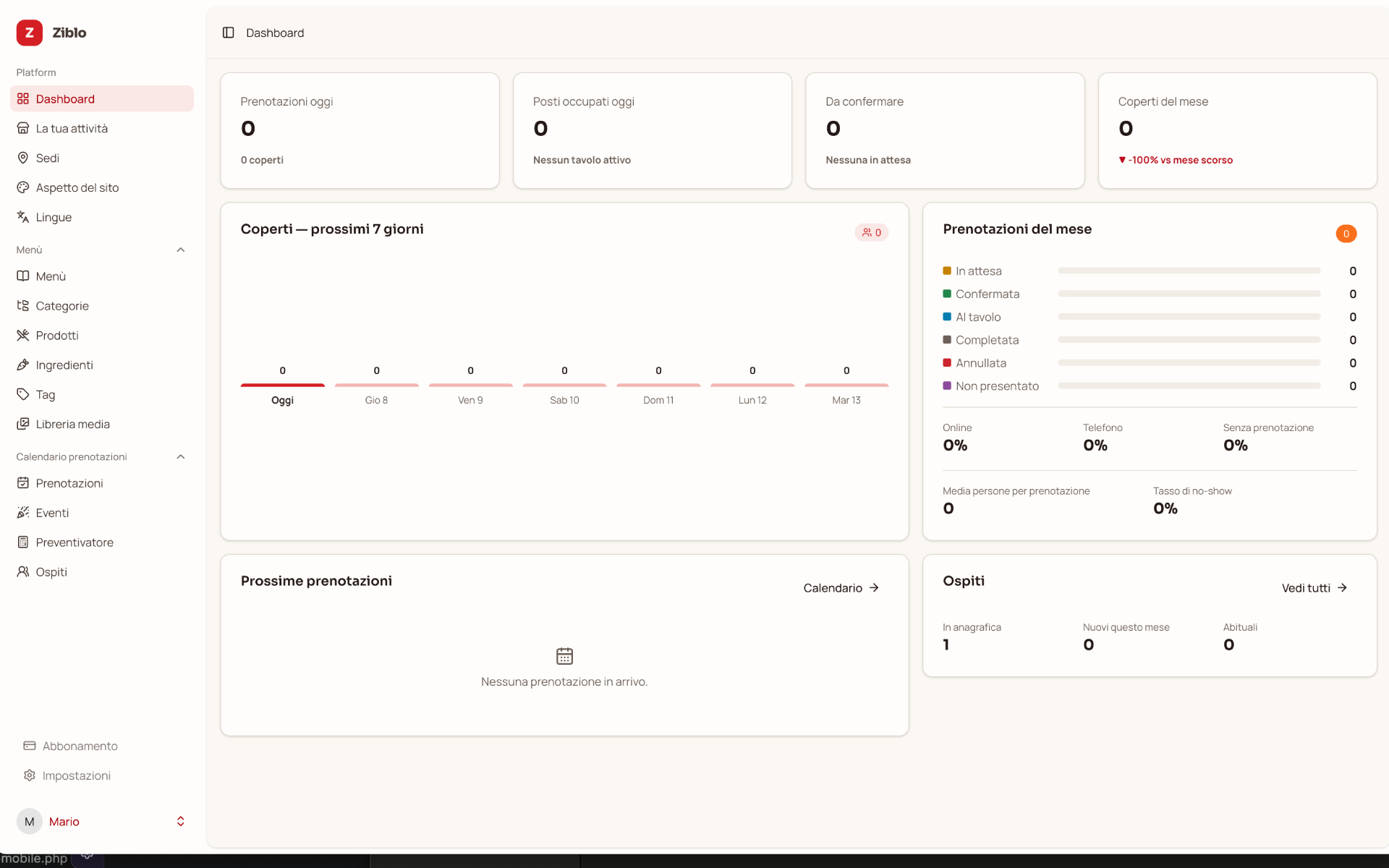
Dashboard
The **Dashboard** option takes you back to Ziblo’s main screen. It is the access point to the activity summary and allows you to quickly check the most important data for your establishment.
Your Activity
The **Your Activity** section collects general information about the establishment. From here, you can manage the activity data and settings related to its organization.
Locations
The **Locations** option is dedicated to managing the locations of the establishment. If the activity has multiple operating points, this section allows you to keep information and configurations separate for each location.
Site Appearance
In **Site Appearance**, you can customize the look of the pages visible to customers, making them consistent with the identity of your restaurant, bar, pizzeria, or business.
Languages
The **Languages** section allows you to configure the languages available for the content and pages used by the establishment. This feature is particularly useful for businesses located in tourist areas or frequented by international customers.
—
The Menu Section
The **Menu** group contains the functions needed to build and organize the establishment’s offerings. The section is composed of multiple interconnected options.
Menu
The **Menu** option allows you to manage the menus published by the establishment. You can use this area to organize the available offers for customers and keep the content updated.
Categories
The **Categories** section is used to organize products in an orderly manner. You can create categories such as:
- starters;
- first courses;
- main courses;
- pizzas;
- burgers;
- sides;
- drinks;
- desserts.
Proper organization of categories makes it easier to browse the menu and speeds up product selection.
Products
In **Products**, you can manage individual menu items. For each product, you can enter the necessary information for presenting the offer, such as name, description, category, and price.
It is important to keep products updated, especially when prices, available ingredients, or seasonal offers change.
Ingredients
The **Ingredients** section allows you to organize information about the ingredients used in the products. Precise management helps better describe the dishes and communicate useful information to customers.
This area is particularly important for indicating the presence of specific ingredients, allergens, or elements to consider when preparing orders.
Tags
The **Tags** allow you to add labels to products and identify them through common characteristics. You can use them, for example, to indicate products that are:
- vegetarian;
- vegan;
- spicy;
- gluten-free;
- recommended;
- seasonal.
Media Library
The **Media Library** collects images and other multimedia content used in the system. From this area, you can manage the visual resources associated with the menu and the establishment’s pages.
—
The Reservations Calendar
The **Reservations Calendar** group contains functions dedicated to managing customers and expected attendance in the establishment.
Reservations
The **Reservations** option allows you to view and manage requests received by the establishment. From this area, you can check the details of reservations, the status of requests, and information about customers.
The dashboard screen also shows some summary data on reservations, such as the number of expected requests, covers, and reservations still to be confirmed.
Events
The **Events** section is dedicated to managing special occasions, organized evenings, parties, fairs, or appointments with specific reservation methods.
Events may require different configurations compared to the usual service of the establishment, for example, regarding availability, number of covers, hours, or group management.
Quotation Tool
The **Quotation Tool** is the area dedicated to preparing an estimate for requests, events, or services of the establishment. It can be useful when you need to evaluate in advance costs, quantities, or conditions related to a specific request.
Guests
The **Guests** section contains the customer records and people who have interacted with the establishment through reservations.
Managing guests helps maintain an orderly history and quickly access the necessary information for service.
—
Summaries in the Central Section
The central part of the dashboard presents a series of boxes and informational panels. These elements are designed to provide an immediate view of the establishment’s status.
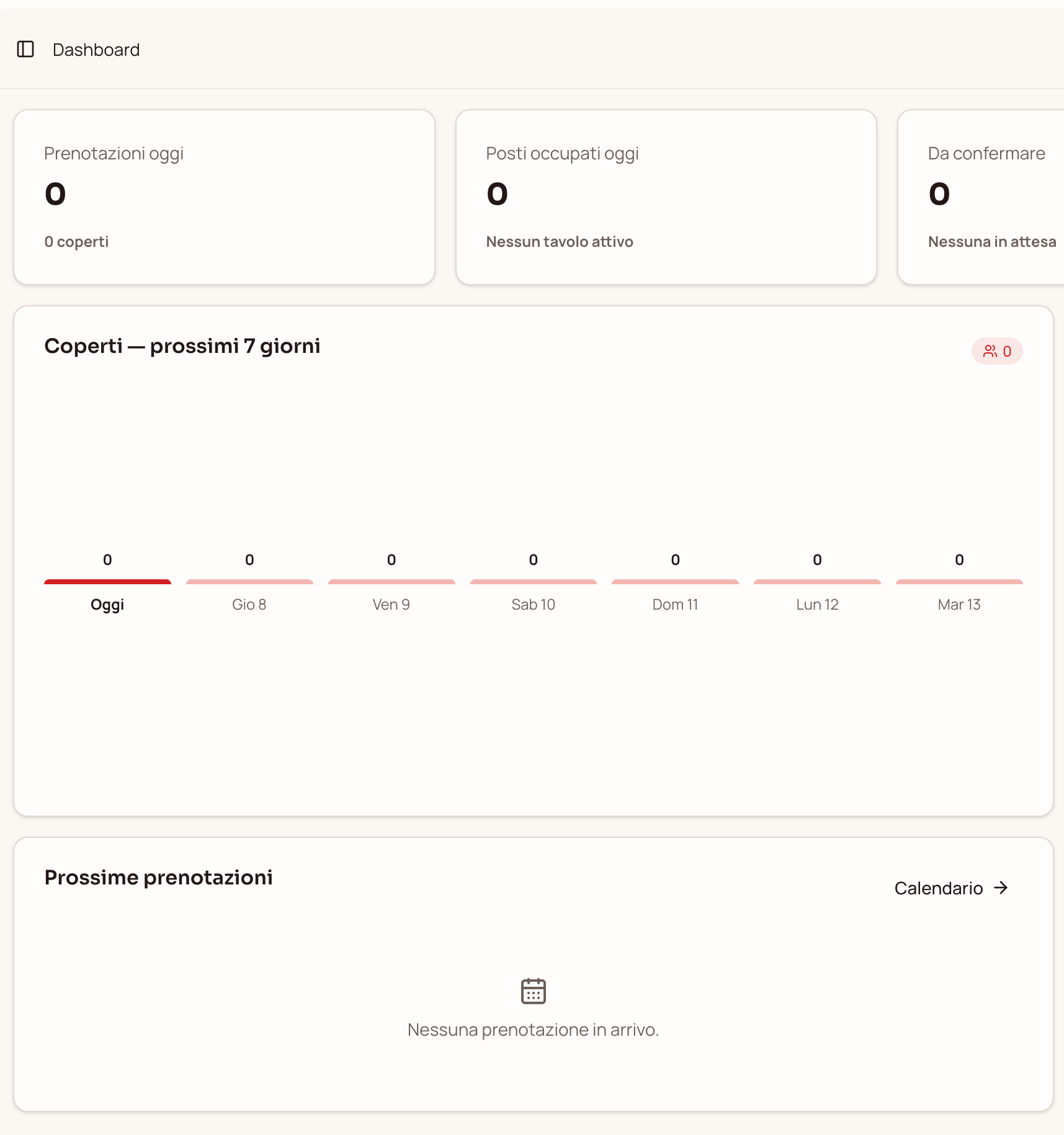
Today’s Reservations
The **Today’s Reservations** box shows the number of expected reservations for the day and the total covers associated with them.
This is one of the first pieces of data to check at the start of the shift, as it lets you know how many people are expected and prepare the room and staff accordingly.
Occupied Seats Today
The **Occupied Seats Today** box indicates the covers currently engaged or associated with active tables.
This data helps you compare the actual service situation with the expected reservations and monitor the day’s progress.
To Confirm
The **To Confirm** section shows reservations that still require an action or confirmation.
Regularly checking this value helps avoid omissions and allows staff to intervene on pending requests.
Covers of the Month
The **Covers of the Month** box provides a summary view of the number of covers registered in the current period. Comparing it with the previous month can help you understand if the activity is growing, declining, or maintaining a stable trend.
—
The Covers Chart for the Next Seven Days
The **Covers — Next 7 Days** panel shows the expected distribution of covers during the week.
Each day is represented with its respective number of covers. This view is useful for:
- predicting days with higher attendance;
- organizing staff shifts;
- preparing the kitchen and bar;
- evaluating necessary supplies;
- identifying in advance days with lower demand.
Checking this chart before the start of the week allows you to make organizational decisions with more advance notice.
—
The Monthly Reservations Summary
The **Monthly Reservations** box shows the distribution of reservations based on their status.
Reservation Statuses
In the panel, you can find several categories:
- Pending: requests that still need to be confirmed;
- Confirmed: reservations accepted by the establishment;
- At the Table: customers who have arrived and are associated with the table;
- Completed: service concluded;
- Cancelled: reservation cancelled;
- No-show: customer who did not show up.
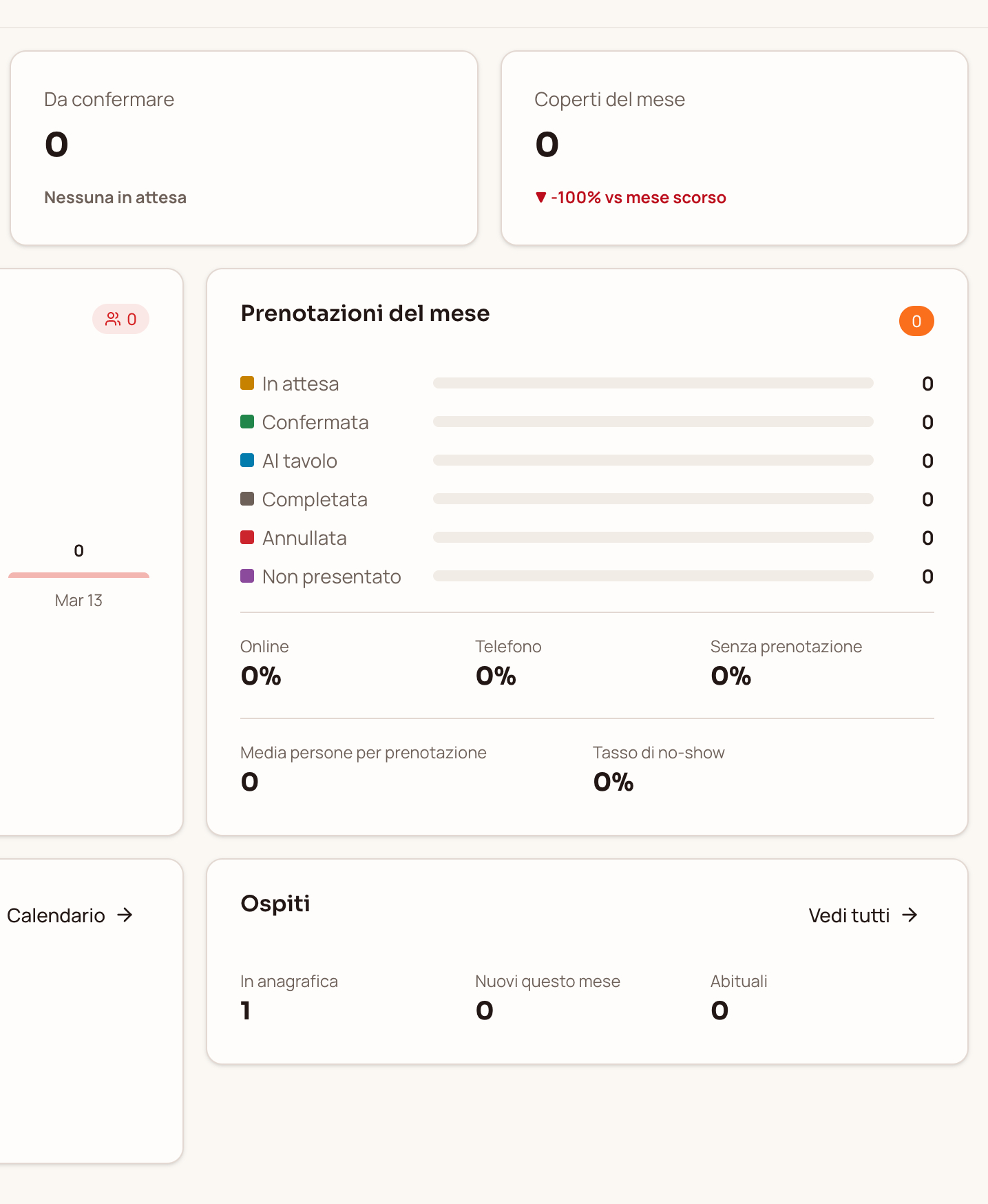
The breakdown by status helps you quickly understand how many reservations are still active, how many have been completed, and how many did not result in service.
Origin of Reservations
The dashboard also distinguishes the origin of reservations through three indicators:
- online;
- phone;
- no reservation.
These data help you understand how customers arrive and what role the different channels play in managing the establishment.
Average People per Reservation
The **Average People per Reservation** value indicates the average size of the groups registered. This data is useful to understand if the establishment primarily receives couples, small groups, or larger tables.
No-show Rate
The **no-show rate** indicates the percentage of reservations associated with customers who did not show up.
Monitoring this value helps evaluate the effectiveness of reminders and decide whether to introduce specific procedures to confirm reservations on high-demand days.
—
Upcoming Reservations
The **Upcoming Reservations** panel shows the upcoming appointments. From here, you can quickly check if there are any imminent reservations or access the full calendar.
This section is particularly useful during service, as it allows you to know which customers will arrive in the following hours and prepare tables, menus, and staff in advance.
—
The Guests Box
The **Guests** panel presents a summary of the customer records. In the screenshot, three indicators are available:
- In Records: total number of registered guests;
- New This Month: customers added in the current month;
- Regulars: customers who regularly return to the establishment.
These data help understand the composition of the clientele and evaluate how frequently guests return.
—
Subscription and Settings
Subscription
The **Subscription** option allows you to view the active plan and information related to the Ziblo service.
Settings
In **Settings**, you can find the general configurations of the platform and your account. It is advisable to consult this section when you need to modify preferences, access, or operational parameters.
User Profile
At the bottom of the sidebar, you will find the profile of the connected user. From here, you can recognize the currently active account and access its options.
—
How to Use the Dashboard Every Day
To work in an organized manner, you can follow this simple routine:
- Check the reservations expected for the day.
- Verify the total number of covers and occupied seats.
- Check the requests still to be confirmed.
- Review reservations for the following days.
- Verify any upcoming events.
- Update menus, products, and availability when necessary.
- At the end of service, check the status of reservations and the main data.
With this procedure, the dashboard becomes a daily operational tool and not just a summary page.
—
The Ziblo Dashboard in Summary
The Ziblo dashboard brings together in a single screen the most important information for managing the establishment:
- day’s reservations;
- expected and occupied covers;
- requests to confirm;
- covers trend for the next seven days;
- monthly reservation statuses;
- origin of reservations;
- no-show rate;
- guest records.
The sidebar completes navigation and allows you to quickly reach the areas dedicated to menu, products, ingredients, reservations, events, locations, languages, and settings.
Learning to recognize these areas allows you to use Ziblo with greater confidence and always keep control of your establishment’s organization.