
Language and Translation Management on Ziblo
The Languages section of Ziblo allows you to define in which languages to make the contents of your business available.
You can choose a main language, used as a reference for all content, and activate additional languages to translate menus, dishes, categories, public pages, and information about your venue.
Multilingual management is particularly useful for restaurants, pizzerias, bars, agriturismi, seaside venues, and businesses located in tourist areas or frequented by international customers.
What the Languages Section Is For
Configuring languages correctly allows you to present your venue more clearly even to customers who do not speak Italian.
The activated languages can be used to offer translated content related to:
- digital menus;
- menu categories;
- products and dishes;
- ingredients;
- product tags and features;
- public pages of the website;
- descriptive texts of the activity;
- events;
- frequently asked questions;
- contact information.
A well-organized multilingual configuration helps customers better understand the offer, reduces doubts during menu consultation, and makes the site more accessible to an international audience.
How to Access the Languages Section
To open the configuration screen:
- Log in to your Ziblo reserved area.
- Locate the left sidebar.
- In the Platform section, select the Languages option.
The page dedicated to the main language of the account and the translations you can make available to customers will open.
The Language You Write In
At the top of the page, you will find the La lingua in cui scrivi area.
This setting defines the primary language of the account, also called the base language. It is the language in which you normally enter the content of your locale and serves as the default reference for Ziblo.
How the Base Language Works
The base language is used by the system when content is not available in the language chosen by the customer.
For example, if the base language is Italian and a customer views the menu in English, Ziblo will show:
- the English translation, if it has been entered;
- the Italian text of the base language, if the English translation is not present.
This behavior prevents customers from encountering empty sections or incomplete content while navigating.
How to Set the Primary Language
To choose or modify the base language, use the dropdown menu:
Written in
For example, if you create menus, products, and content initially in Italian, select:
Italian
The choice of base language should correspond to the language you use most often to manage the locale and write the original content.
When to Change the Base Language
Change this setting only if the primary language of the business actually changes.
Before changing the base language, verify:
- in which language menus, products, and pages are already written;
- which translations are already available;
- if most customers use a different language;
- if the staff responsible for updating the site work in a different language.
In many cases, for an Italian locale, the most natural choice is to keep Italian as the base language and enable English, German, French, or other languages as additional translations.
Enable Translations
In the Translations section, you can choose the additional languages in which you want to make the site and menu content available.
The selected languages become available as translation options within the content management areas.
Search for a language
If you need to quickly find a specific language, use the field:
Search for a language
Start typing the name of the language you want to activate. The system will filter the list to help you identify the correct option faster.
You can search, for example:
- English;
- French;
- German;
- Spanish;
- Portuguese;
- Dutch;
- Polish;
- Romanian.
List of available languages
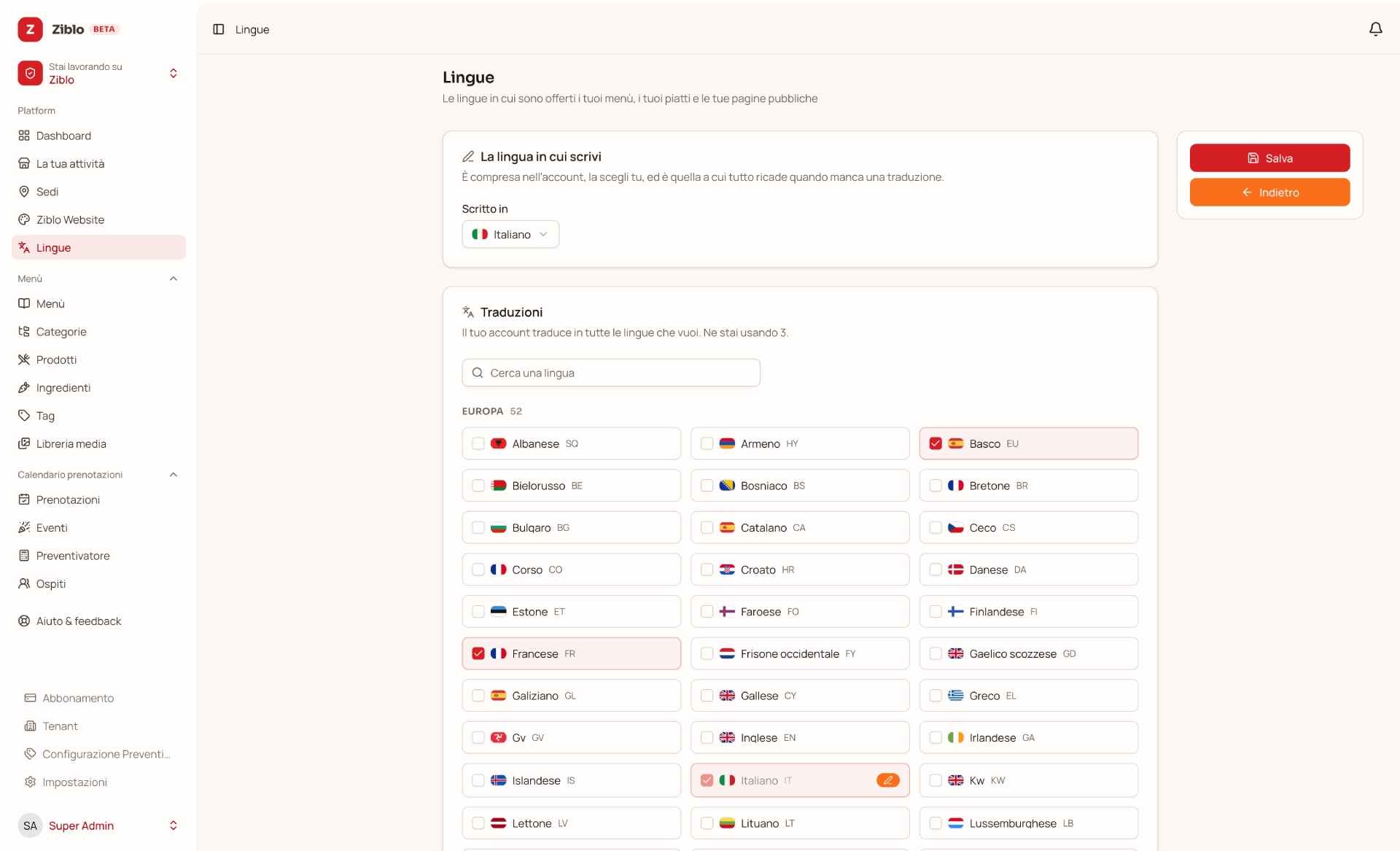
The available languages are organized by geographic areas, such as Europe.
To activate a language:
- Find the desired language in the list or use the search field.
- Select the checkbox corresponding to the language.
- Repeat the operation for all the languages you want to make available.
- Check the summary of active languages.
- Save the changes.
Only activate languages that you are truly able to keep up-to-date. A menu available in many languages but with incomplete translations can confuse customers.
Count of active languages
The page shows the total number of languages currently active on your account.
This indicator helps you quickly verify how many language versions are available for the site, the menu, and other public content.
Remember that activating a language does not automatically translate all existing content. After activation, you will need to insert or verify translations in the dedicated sections of Ziblo.
Which Languages to Choose
The choice of languages should depend on the type of activity, geographical location, and origin of customers.
| Type of Activity or Area | Languages to Consider |
|---|---|
| Local in an Italian tourist city | Italian, English, French, German, Spanish |
| Agriturismo or rural tourist structure | Italian, English, German, French |
| Local in a beach resort | Italian, English, German, French, Dutch |
| Restaurant in an area with international tourism | Italian, English and most frequent languages among customers |
| Local with predominantly local clientele | Italian and, if useful, English |
It is not necessary to activate all available languages. It is better to start with the most useful languages for your customers and add others only when you are ready to manage them carefully.
How to Correctly Translate Content
After activating a language, check the areas of the site and menu you want to make available to international customers.
Check particularly:
- titles and descriptions of the Home Page;
- texts of the Ziblo Website section;
- menu categories;
- product names and descriptions;
- ingredients;
- tags, such as vegetarian, vegan, or spicy;
- events;
- frequently asked questions;
- contact information;
- any booking messages.
When translating a menu, do not limit yourself to word-for-word translation. Use terms understandable to a foreign customer and ensure the dish description is clear.
Example: translation of a category
| Language | Category |
|---|---|
| Italian | Antipasti |
| English | Starters |
| French | Entrées |
| German | Vorspeisen |
Example: translation of a dish
| Language | Product Name | Description |
|---|---|---|
| Italian | Tagliatelle al ragù | Fresh egg pasta with slow-cooked meat ragù. |
| English | Fresh tagliatelle with meat ragù | Fresh egg pasta served with slow-cooked Italian meat ragù. |
If a translation is not yet ready, the system will display the content in the base language. Therefore, it is important that the main language is always up-to-date and complete.
Menu, Allergens, and Important Information
Translating content is useful to improve the customer experience, but it requires special attention when dealing with ingredients, allergens, intolerances, or product characteristics.
Always ensure that important information is correct in every active language. In case of doubt, avoid unchecked automatic translations and use a simple, clear, and consistent formulation.
The management of information related to ingredients, allergens, availability, and food safety remains the responsibility of the activity that publishes the menu.
Save Changes
After selecting the base language and the translations to activate, you must save the configuration.
- Check that the language indicated in Written in is correct.
- Verify the checked boxes in the Translations section.
- Check the total number of active languages.
- Click the red Save button, located at the top right.
The Save button makes the language configuration changes effective.
Go Back Without Saving
If you want to exit the page or cancel the changes that have not yet been confirmed, select the button:
Back
Before leaving the page, make sure you have saved the settings you want to keep.
Checklist Before Activating a New Language
Before adding a new language, verify:
- Is the language useful for your customers?
- Do you have time and resources to translate the main content?
- Is the menu complete and up-to-date in the base language?
- Are the dish descriptions understandable?
- Are ingredients and important information correctly translated?
- Are events and hours up-to-date?
- Have the public pages been checked in the new language?
In Summary
The Languages section allows you to define the main language of the account and the available translations for the public website and menus of your establishment.
For correct configuration:
- choose the base language carefully;
- activate only the languages that are actually